Getting started
Account or device only, your first vehicle and the settings that matter.
bordero is a logbook for your work as a driver: you start a shift, drive your tours and enter your breaks. At the end you know when you were where, how long you worked and how far you drove.
With an account or on this device only
On first launch the app asks where your data should live:
- With an account: your data is backed up automatically and is there again after you change phones. Comments on locations, the public status and proof mode need an account.
- On this device only: no account, no connection to the server. There is no automatic backup, so save a backup yourself from time to time.
You can start locally and move to an account with your data later. That works once and cannot be undone.
The five areas
At the bottom of the app you find five tabs:
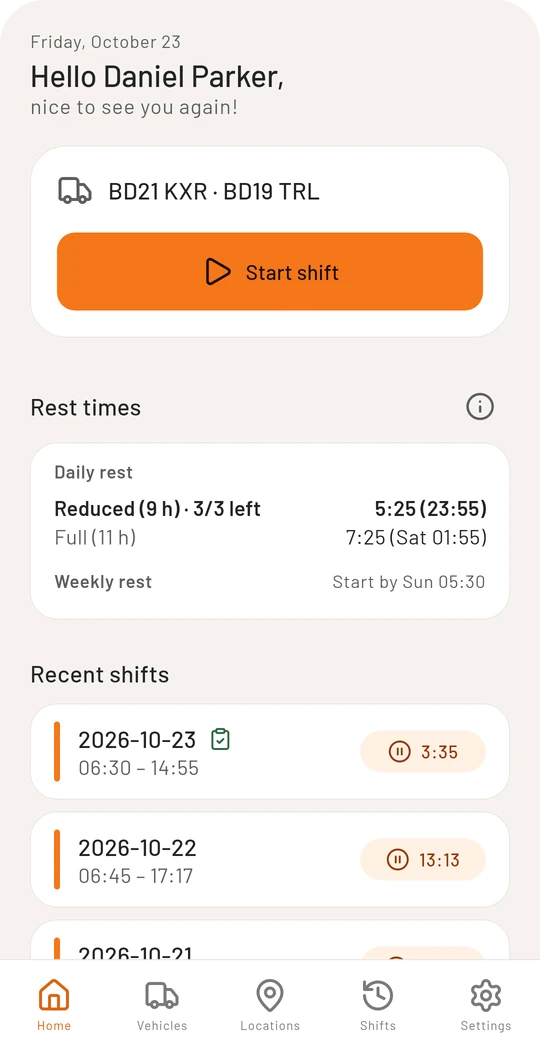
- Home (during a shift: Duty): start and run your shift
- Vehicles: add and select trucks, trailers and swap bodies
- Locations: every destination, customer or rest area alike
- Shifts: all finished shifts to look up
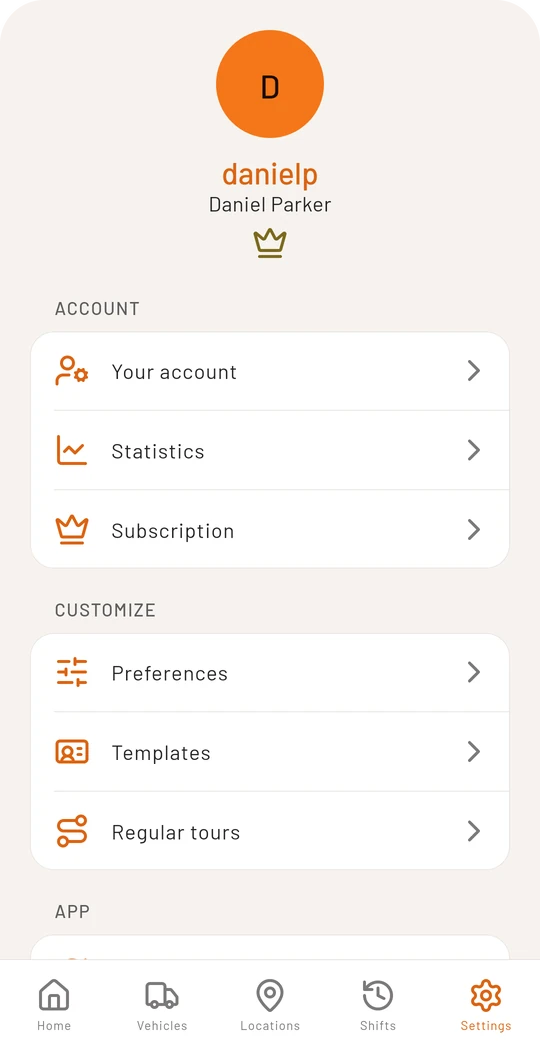
- Settings: account, preferences, templates and privacy
Add and select a vehicle
Before you set off, the app needs a vehicle:
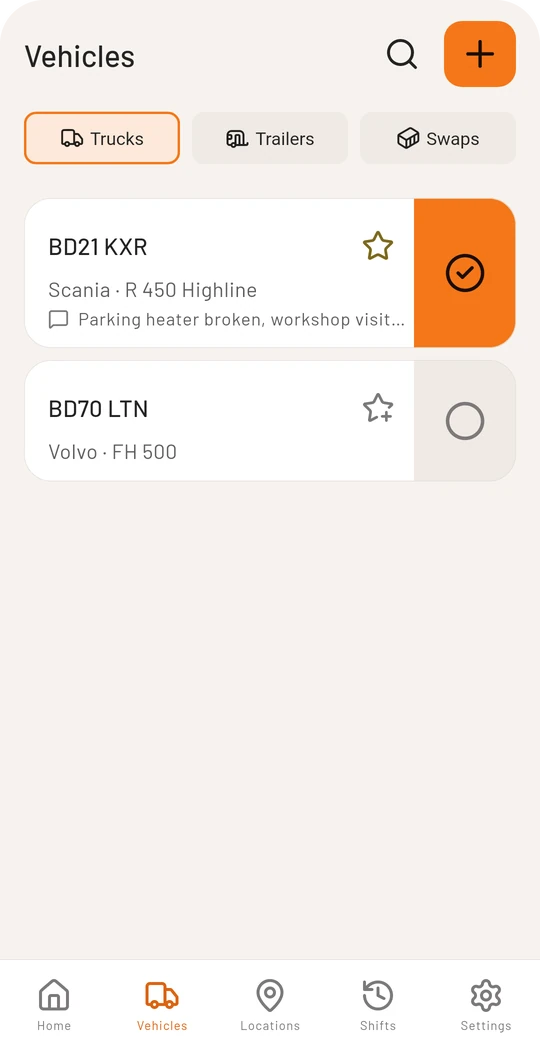
- Open Vehicles and tap the plus at the top right.
- Enter licence plate, manufacturer, model and the current mileage.
- Select the vehicle with the circle on the right. The selected vehicle then shows on the home page above the “Start shift” button.
Trailers and swap bodies work the same way. If you do not need them, hide them in the preferences.
On this device only you can add up to 5 vehicles, 10 with an account, unlimited with Premium.
Preferences worth setting
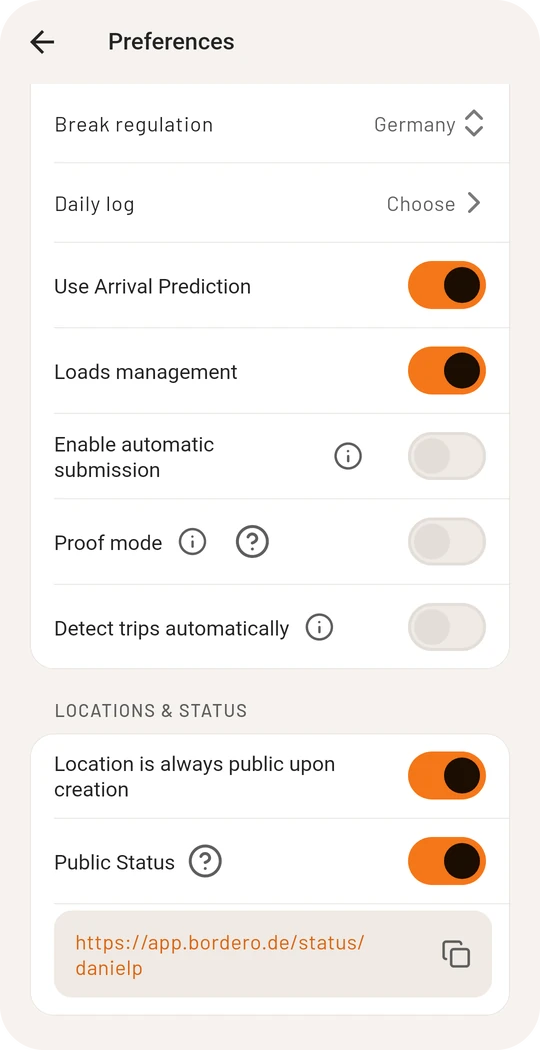
Under Settings → Preferences you adjust the app to you:
- Theme: dark for the night, light for the day. With “Automatic by time of day” the app switches on its own at the two times you set (default: light from 07:00, dark from 19:00)
- Break regulation: Germany or Europe, see Breaks and rest times
- Daily log: if you still have to hand in a daily log on paper or to your employer, the app remembers that per shift. The shift then carries a mark until you tick the log off as done. You decide whether that applies to every shift, to none, or whether the app asks at every shift start
- Proof mode: for everyone who wants to prove their times to an employer or the tax office. The app then asks about the night at the end of a shift, requires a reason for late corrections and creates an expense report. The details are under Proof mode
- Automatic submission: forms such as the arrival send themselves after a short countdown if you change nothing
Next up: your first shift.