Tours and locations
Add destinations, turn them into tours, reorder them and share tips with other drivers.
Every destination is a location, whether customer, warehouse or rest area. A tour is the drive to a location within your shift. You add a location once and pick it again and again afterwards.
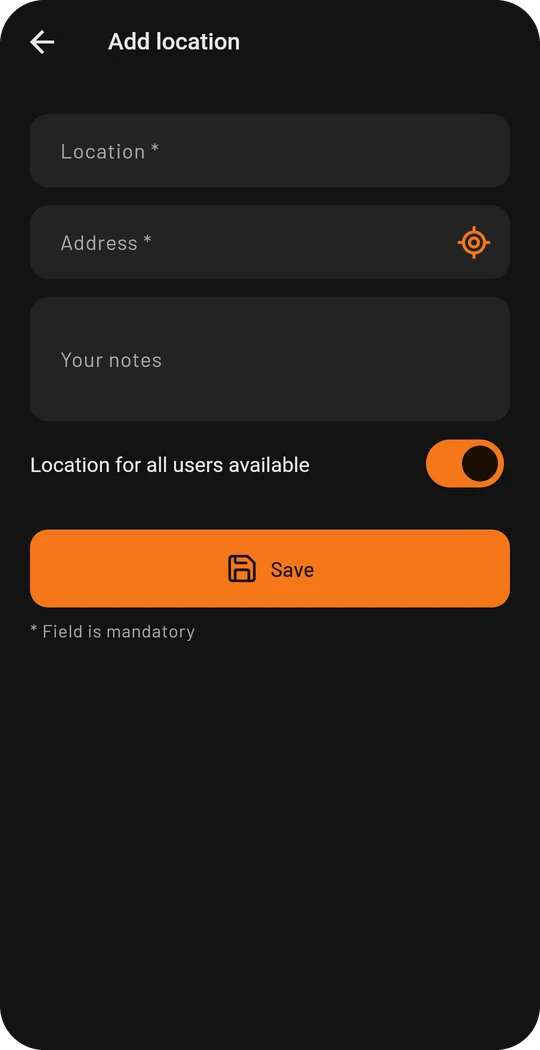
Add a location
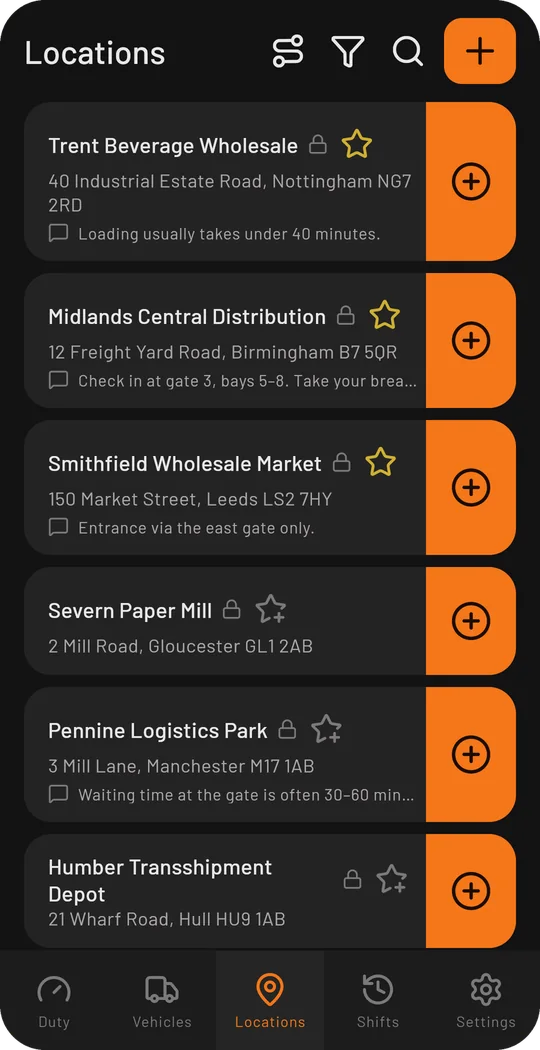
- Open Locations and tap the plus at the top right.
- Enter name and address. The crosshair in the address field takes your current position from GPS.
- Notes such as “Entrance via east gate only” show right in the list later.
- Save.
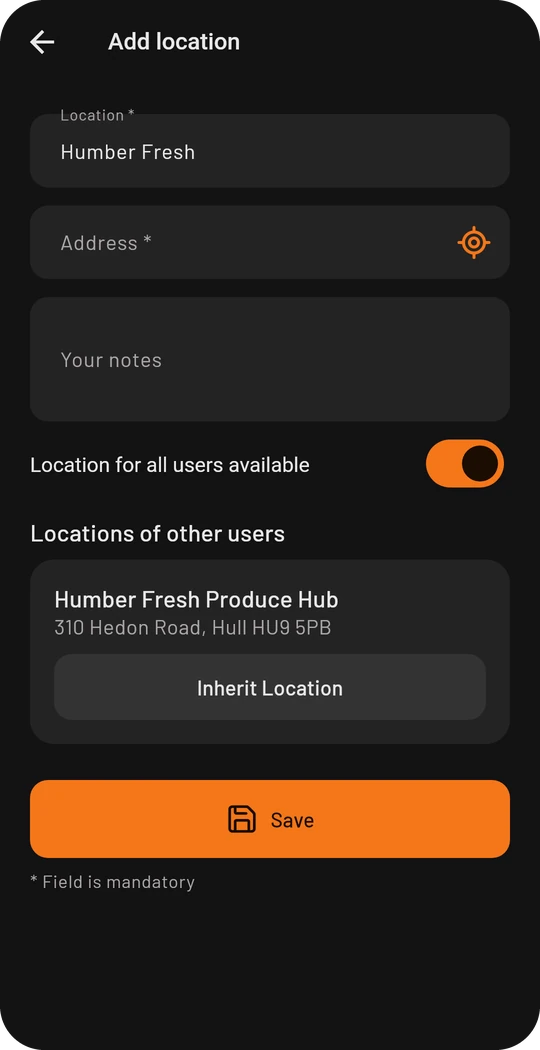
If another driver already knows the place and shares it, the app suggests it while you type the name or address (from three characters, with an account only). Inherit Location puts it into your list with address and position, and you see what others commented on it.
The star marks favourites. With search and filter you find every place again, even years later.
Add a location as a tour
During a shift every location has an orange button with a plus on the right. Tap it to append the location to your shift as the next tour. That is how you plan the whole round in the morning or add a stop on the way.
Reorder, edit, delete
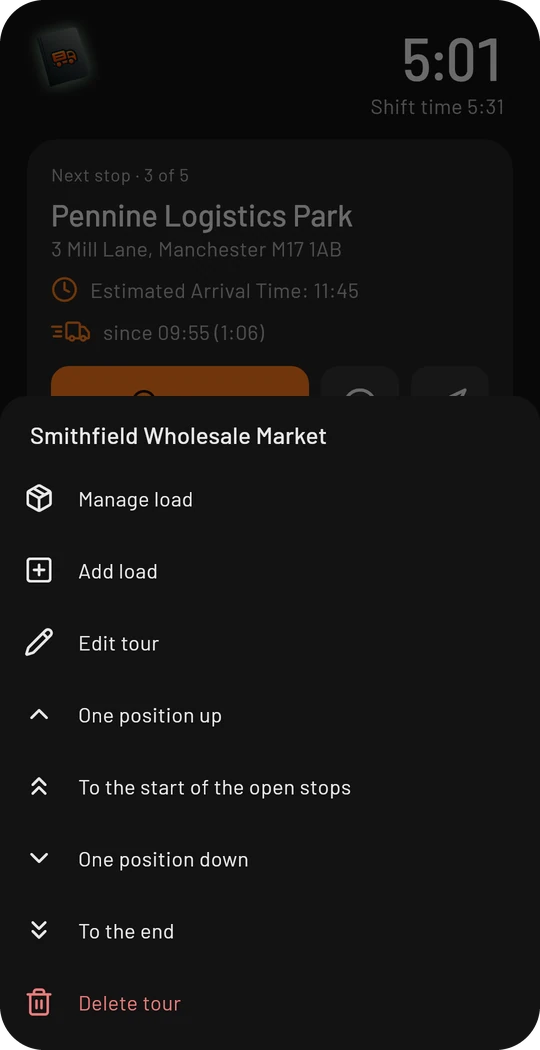
The three dots next to a tour in the cockpit open its menu:
- One position up / down, to the start of the open stops or to the end
- Edit tour: correct location, times, mileage and notes
- Add load / Manage load, see Loads
- Delete tour
Regular tours and optimisation (Premium)
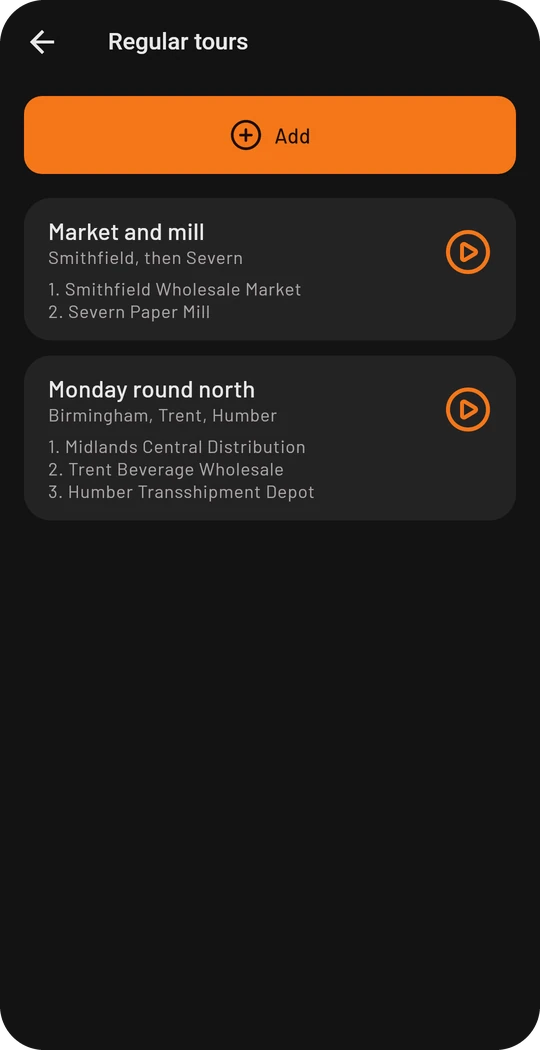
Regular tours are rounds you drive again and again: a list of locations in a fixed order, with a fixed vehicle per stop if you like. You create them under Settings → Regular tours or with the button in the list of locations. During a shift every regular tour has an orange button on the right: it adds all stops to your shift at once.
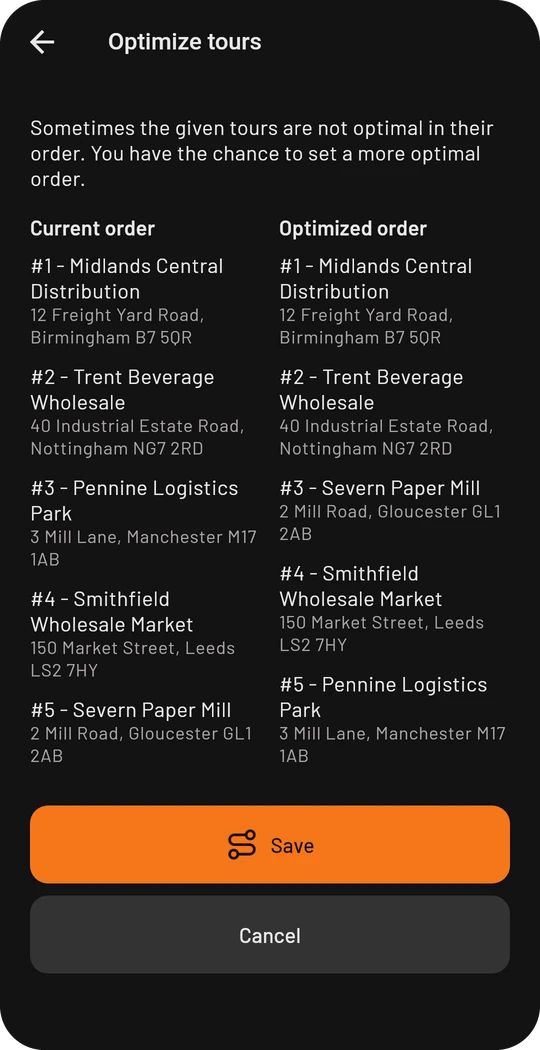
Optimize tours in the sidebar suggests a better order for up to 10 stops. Your order is on the left, the suggestion on the right. Nothing is saved until you tap Save. The entry is there from three stops on and only as long as you have not left the first stop.
Tips from drivers for drivers
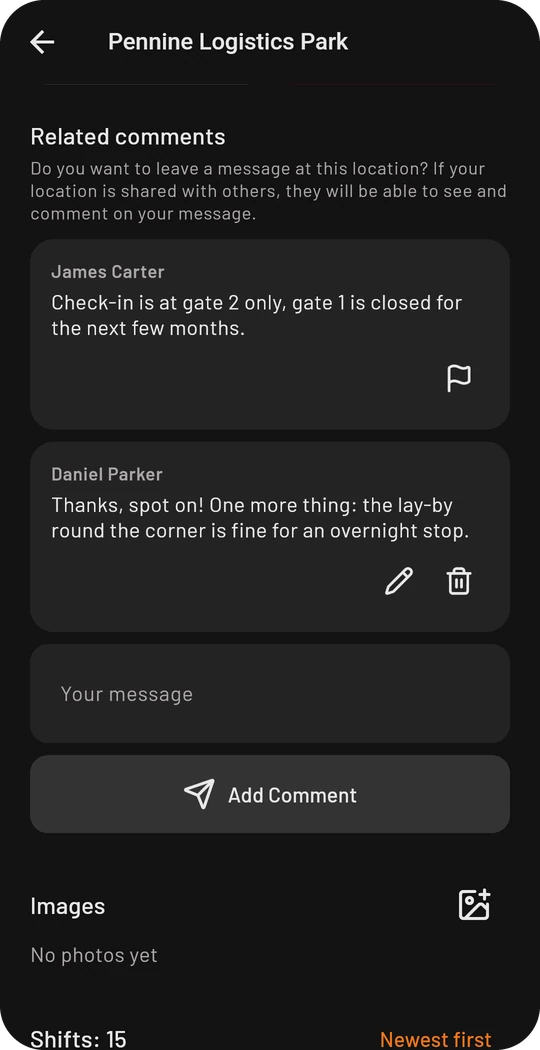
If a location is “available for all users”, other drivers can take it into their list. Everyone who has the same location sees its comments: hints on check-in, waiting time or parking. You can answer, add to them and report unsuitable comments. This needs an account.
Whether new locations are always created as public is set under Preferences → Locations & status.